

 English















































5 Hidden iPhone Features Apple Didn’t Tell You About in the Latest Update

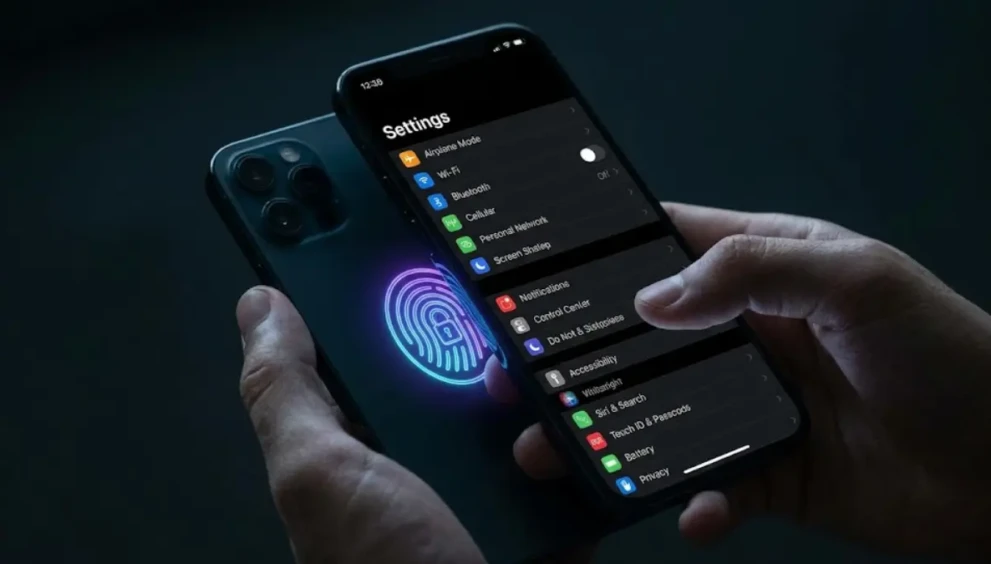
Every time Apple drops a major software update, they spend an hour on stage showing off the flashy, highly marketable changes. But as any tech insider knows, the best upgrades are never mentioned in the keynote.
With the latest rollout of iOS 26 and its subsequent security patches, Apple buried several incredibly powerful tools deep within your settings menu. These aren’t just fun gimmicks—these are daily workflow optimizations that can extend your battery life, instantly protect your banking apps from thieves, and trigger AI actions with a physical tap.
If you want to stop using your $1,000 device like a beginner and start using it like a pro, here are the 5 hidden iPhone features you need to activate right now.
Table of Contents
- The “Secret Button” on the Back of Your Phone
- The Silent Security Upgrade (Stolen Device Protection)
- The “Liquid Glass” Battery Hack
- The Location Tracker Killswitch
- Visual Look Up on Steroids
- Expert Insight: Why Does Apple Hide These?
- Frequently Asked Questions (FAQ)
1. The “Secret Button” on the Back of Your Phone
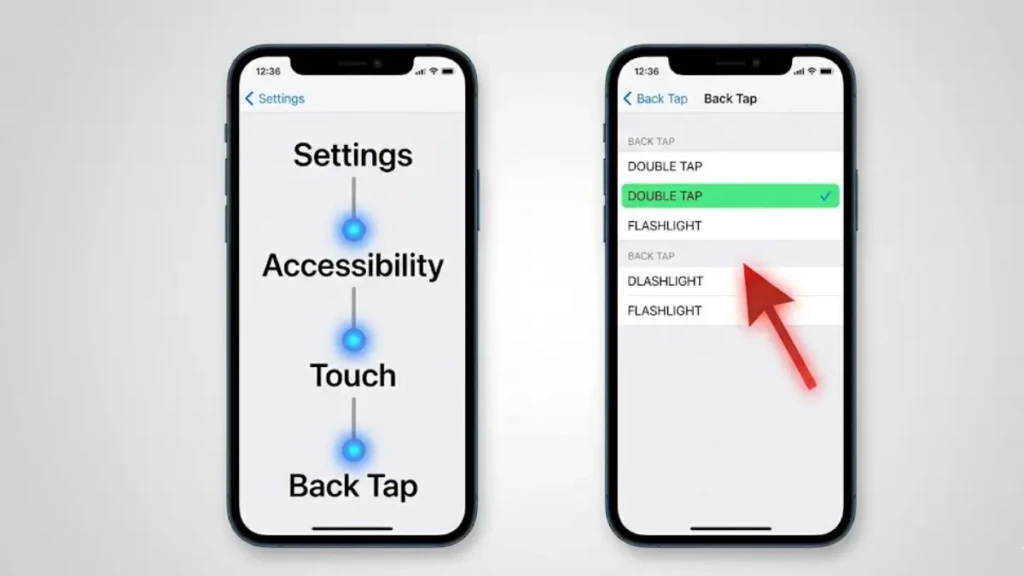
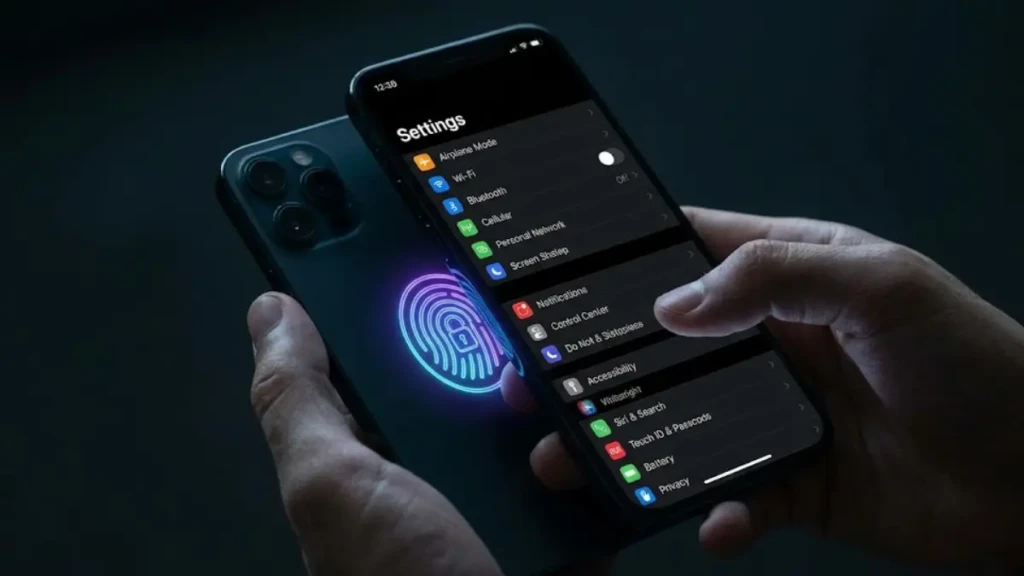
You probably think the only physical buttons on your iPhone are the volume rockers and the power button. You are wrong. The entire back glass of your iPhone is actually a hidden, touch-sensitive trigger.
How to use it: Apple calls this “Back Tap,” and with the recent integration of Apple Intelligence, it is more powerful than ever.
- Go to Settings > Accessibility > Touch > Back Tap.
- You can assign a “Double Tap” and a “Triple Tap” to almost any action on your phone.
- The Hack: Set the Double Tap to launch your favorite AI prompt or open the camera, and set the Triple Tap to turn on the flashlight. Now, you can perform complex actions without ever unlocking your screen or navigating a menu.
2. The Silent Security Upgrade (Stolen Device Protection)
In the recent iOS 26.4 update, Apple made a massive change to how your phone handles theft, but they didn’t send a push notification to tell you about it.
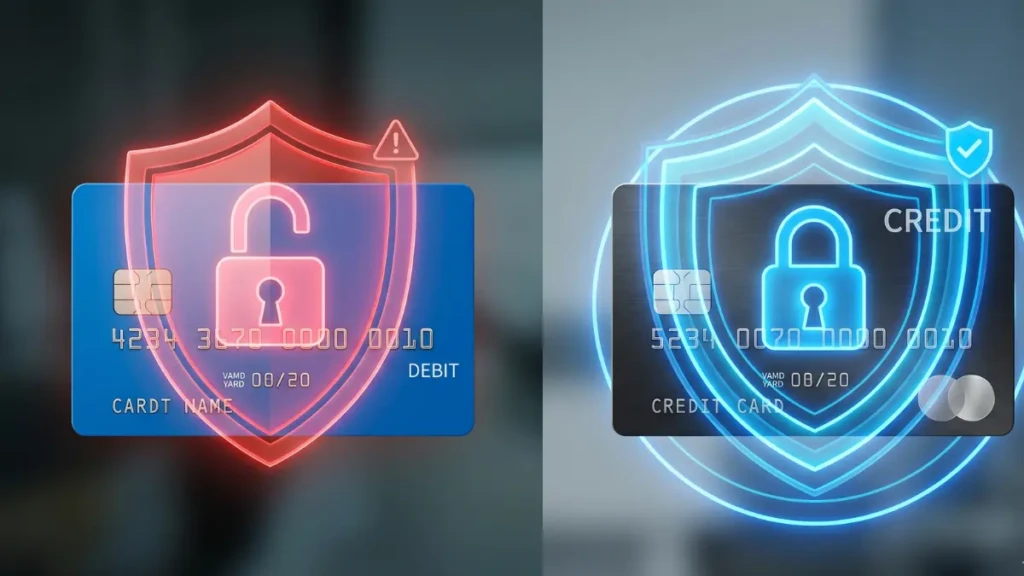
If a thief watches you type your passcode and then steals your phone, they can historically change your Apple ID password and lock you out of your digital life within seconds.
The Hidden Feature: Apple introduced “Stolen Device Protection” to combat this, but in the latest update, the behavior was tweaked to be far more aggressive. When active, it requires Face ID or Touch ID (no passcode fallback allowed) to access saved passwords or change security settings when you are away from familiar locations like home or work.
- How to verify it: Go to Settings > Face ID & Passcode > Stolen Device Protection and ensure it is toggled On. It is the ultimate firewall for your financial apps.
3. The “Liquid Glass” Battery Hack
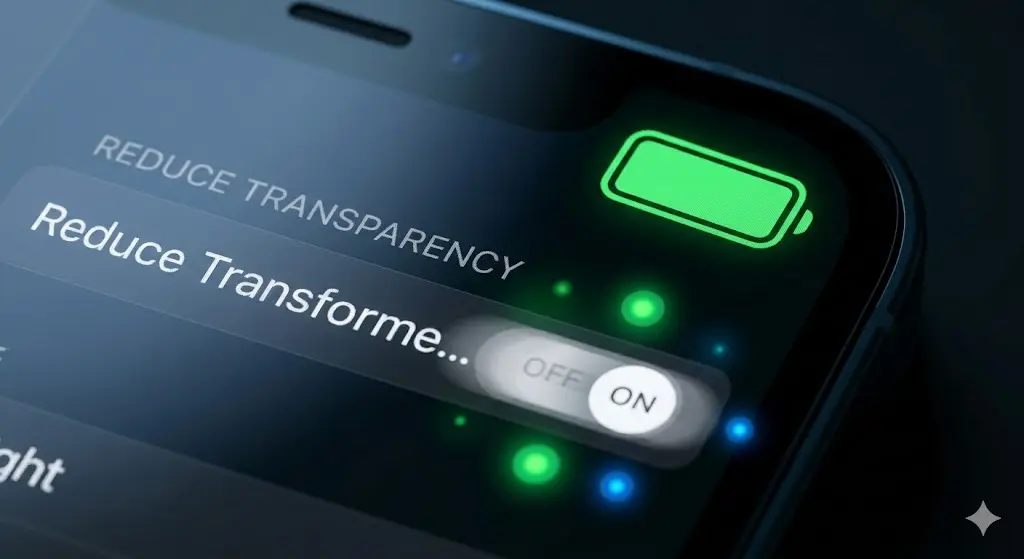
The biggest visual change in 2026 was the introduction of the “Liquid Glass” UI—a stunning, translucent design language that refracts what is behind your widgets and menus. It looks incredible, but it is quietly murdering your battery life.
Rendering those real-time translucency effects requires constant GPU processing. If you are struggling to make it to 5:00 PM on a single charge, you need to turn this off.
The Fix:
- Go to Settings > Accessibility > Display & Text Size.
- Toggle Reduce Transparency to the ON position.
- This kills the heavy “Liquid Glass” rendering in the background. You will barely notice the visual difference, but your battery will easily last an extra 10% to 15% longer every single day.
4. The Location Tracker Killswitch
For years, apps like weather widgets and food delivery services have demanded your “Precise Location.” In the latest updates, Apple quietly added a killswitch that allows you to feed apps “fake” or generalized data.
If an app doesn’t need to know the exact chair you are sitting in, you shouldn’t be giving it that data.
The Fix:
- Go to Settings > Privacy & Security > Location Services.
- Tap on an app (like Instagram or a local news app).
- Toggle off Precise Location. The app will still function by knowing what city you are in, but it will no longer have access to your exact GPS coordinates.
5. Visual Look Up on Steroids
Apple has supercharged the camera app with AI, turning it into a real-time search engine for the physical world.
While most people know you can copy text from a photo, the hidden “Visual Look Up” feature can now instantly identify complex objects, translate real-time menus, and even diagnose warning lights on your car’s dashboard.
The Hack:
- Snap a photo of a strange bug, a plant, or the weird symbol flashing on your car’s dashboard.
- Open the photo and swipe up (or tap the “i” icon at the bottom with the sparkles).
- The iPhone will instantly scan its global database and tell you exactly what you are looking at, providing links to Wikipedia or relevant instruction manuals.
Expert Insight: Why Does Apple Hide These?
We asked a former iOS developer why these incredibly useful tools are buried in the Accessibility and Privacy menus.
“Apple designs for the lowest common denominator. The default iPhone experience has to be simple enough for an 80-year-old to use without getting confused. Features like Back Tap or Precise Location toggles introduce ‘friction’ to the user interface. By hiding them in the settings, Apple keeps the home screen clean while still rewarding power users who are willing to go digging for efficiency.”
Frequently Asked Questions (FAQ)
Will these hidden features slow down my older iPhone?
No. In fact, features like turning on “Reduce Transparency” will actually drastically speed up older devices by taking the rendering load off the GPU. Features like Back Tap use minimal background processing and have zero noticeable impact on device speed.
Do these tricks work on iPads?
Most of them do! Visual Look Up, Reduce Transparency, and the Location Tracker killswitch are all fully functional on iPadOS. However, the physical “Back Tap” feature is currently exclusive to iPhones due to the specific accelerometer hardware required to detect the taps on the glass.
Why don’t I see Stolen Device Protection in my settings?
If you do not see it, you are likely running outdated software. This feature was introduced recently and heavily optimized in the iOS 26.4 patch. Go to General > Software Update and ensure you are on the absolute latest version of iOS.
Unlock Your Tech
Your smartphone is the most powerful piece of technology you own. By diving past the default settings and activating these hidden iPhone features, you transform it from a basic communication device into a highly optimized, secure, and personalized digital assistant. Stop accepting the factory defaults and take control of your hardware today.
Related Post: